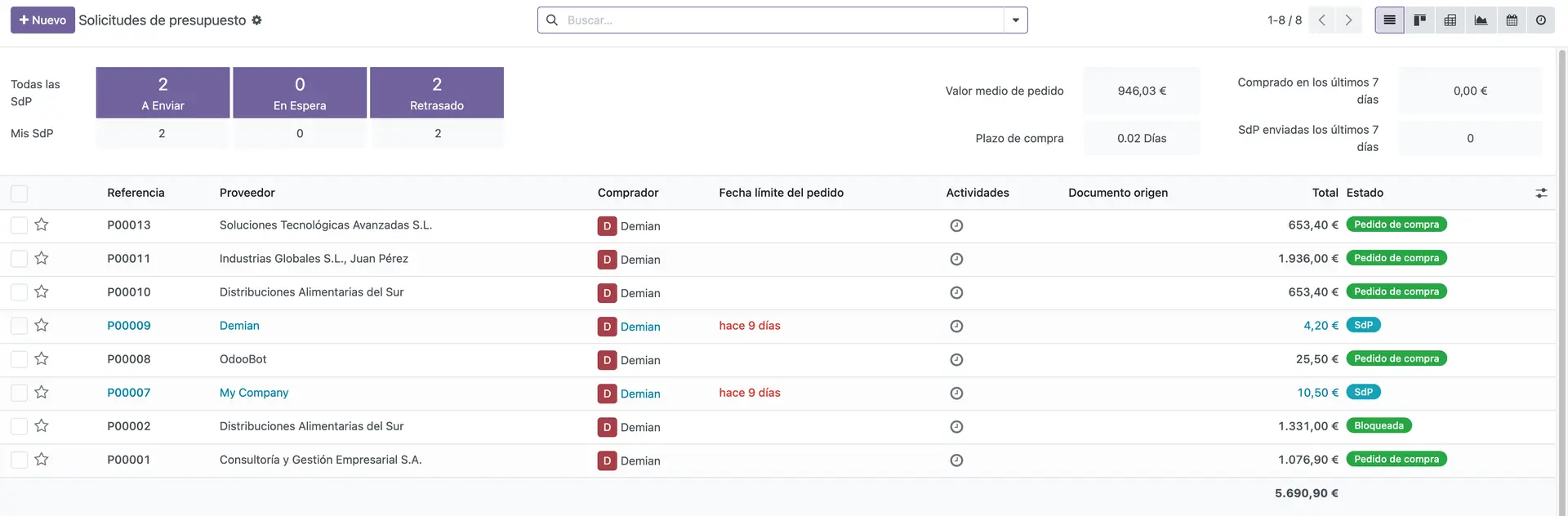
Company Setup
Your company profile is the foundation everything else builds on: logo, address, currency and fiscal localization all flow from here into your invoices, reports and documents.
Do it yourself
Go to Settings > General Settings > Companies. Upload your logo, set your address and time zone, choose your currency, and select the fiscal localization package for your country.
Ask Emma to do it for you
Open Emma and try: "Set up my company profile for [Company Name], based in [City, Country], and configure it for the [Country] fiscal localization." Emma will fill in the fields and show you the result for your approval.
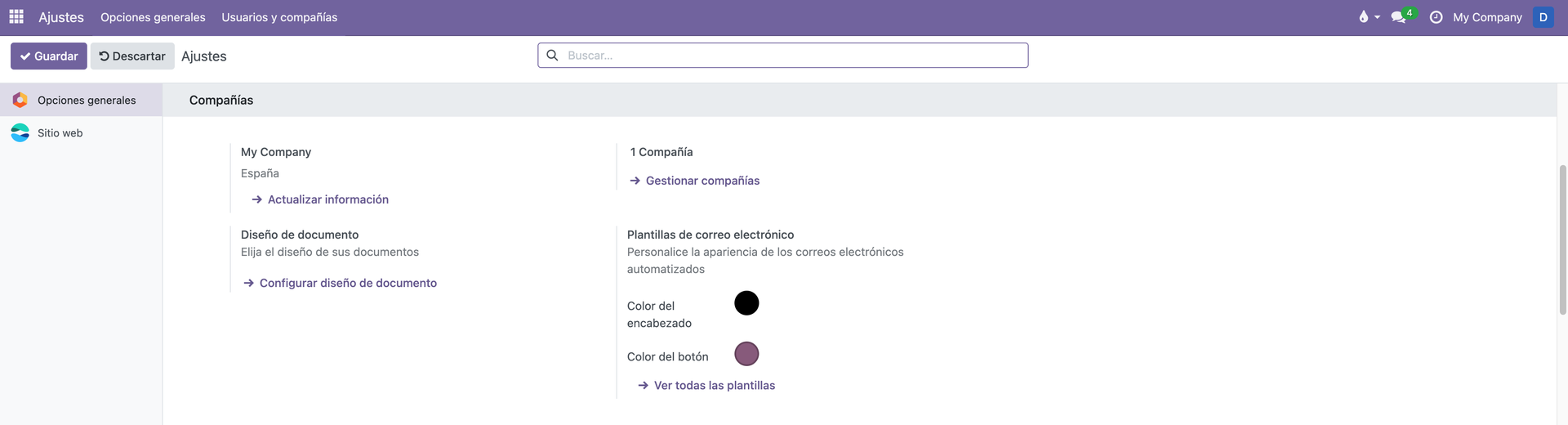
Accounting
Connect your bank account, load your chart of accounts and set your default taxes so invoicing and reporting work correctly from day one.
Do it yourself
Go to Accounting > Configuration. Add your bank account, pick the chart of accounts template for your country, confirm your fiscal year dates and review the default tax rates.
Ask Emma to do it for you
Try: "Connect my company bank account and set up the default [Country] chart of accounts." Emma walks through each step and flags anything that needs your sign-off, like bank credentials.
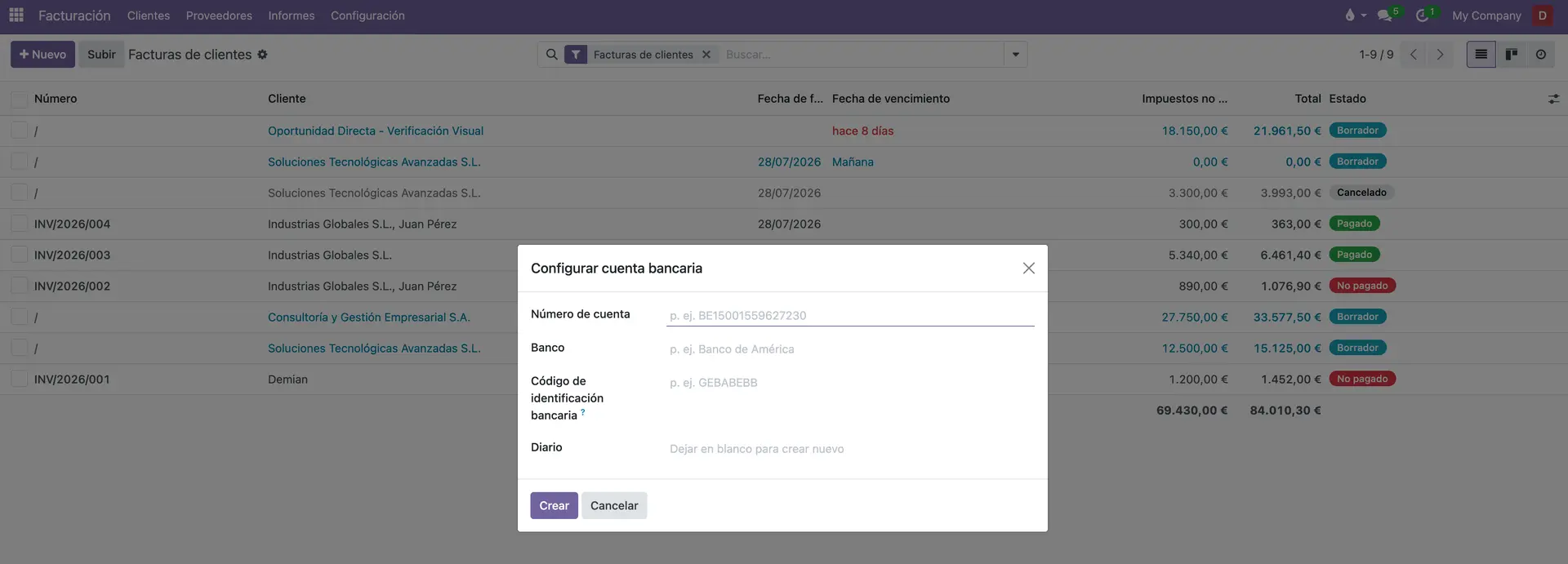
Sales
Set up quotation templates, payment terms and pricelists so your sales team can send professional quotes in seconds.
Do it yourself
Go to Sales > Configuration. Create a quotation template, define your payment terms, and load your product catalog with prices.
Ask Emma to do it for you
Try: "Create a quotation template for [product line] with a 30-day payment term." Emma builds the template and asks you to confirm before saving it.
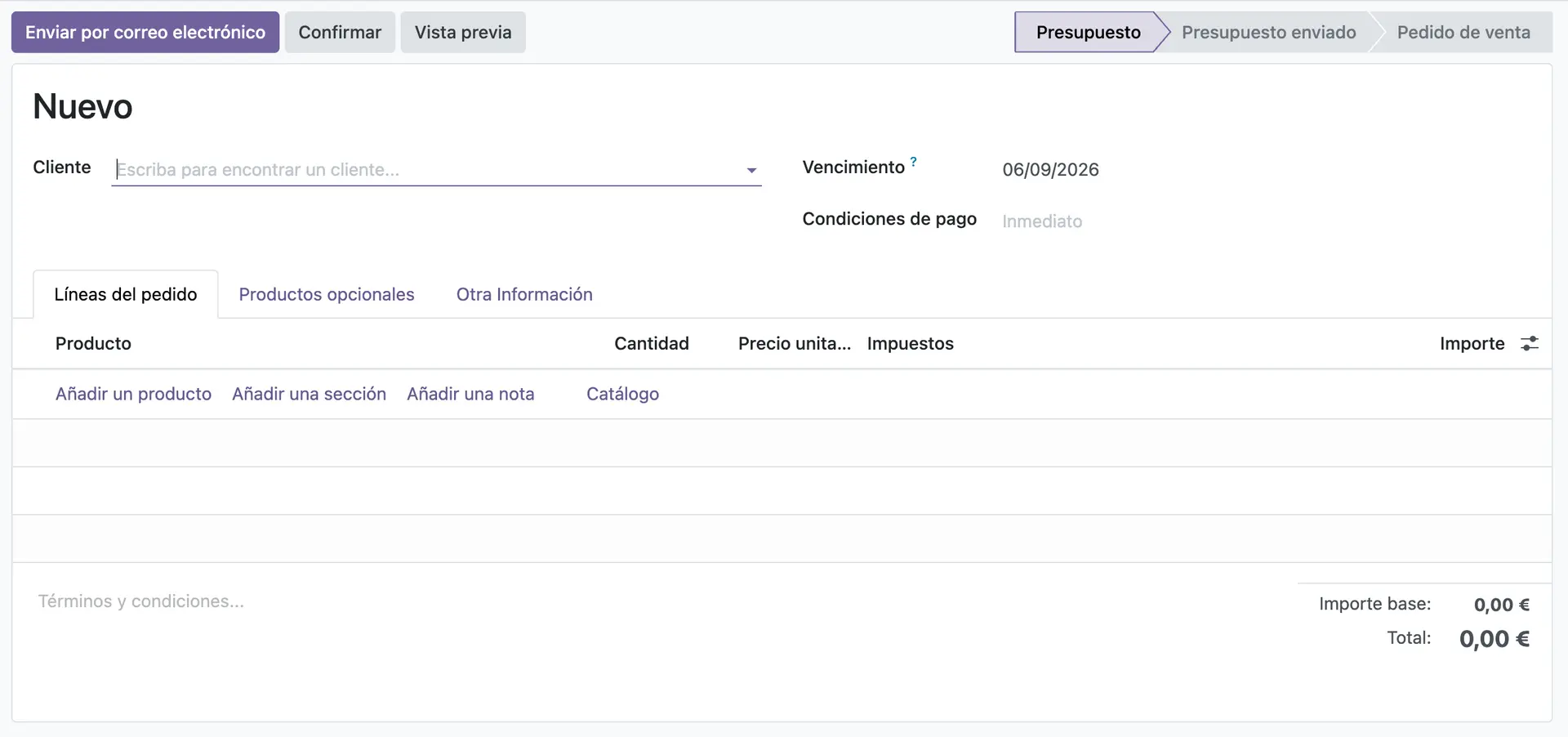
CRM
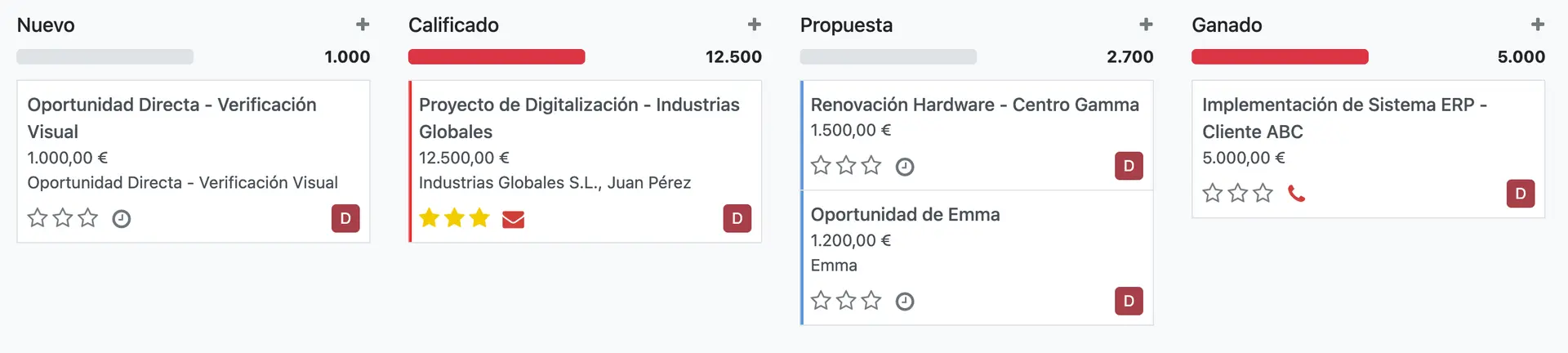
Build a pipeline that matches how your team actually sells: stages, lead sources and team assignment.
Do it yourself
Go to CRM > Configuration. Add your pipeline stages, define lead sources, and assign salespeople to the right team.
Ask Emma to do it for you
Try: "Build me a 5-stage sales pipeline for a B2B process and assign it to my sales team." Emma proposes the stages and applies them once you approve.
Inventory
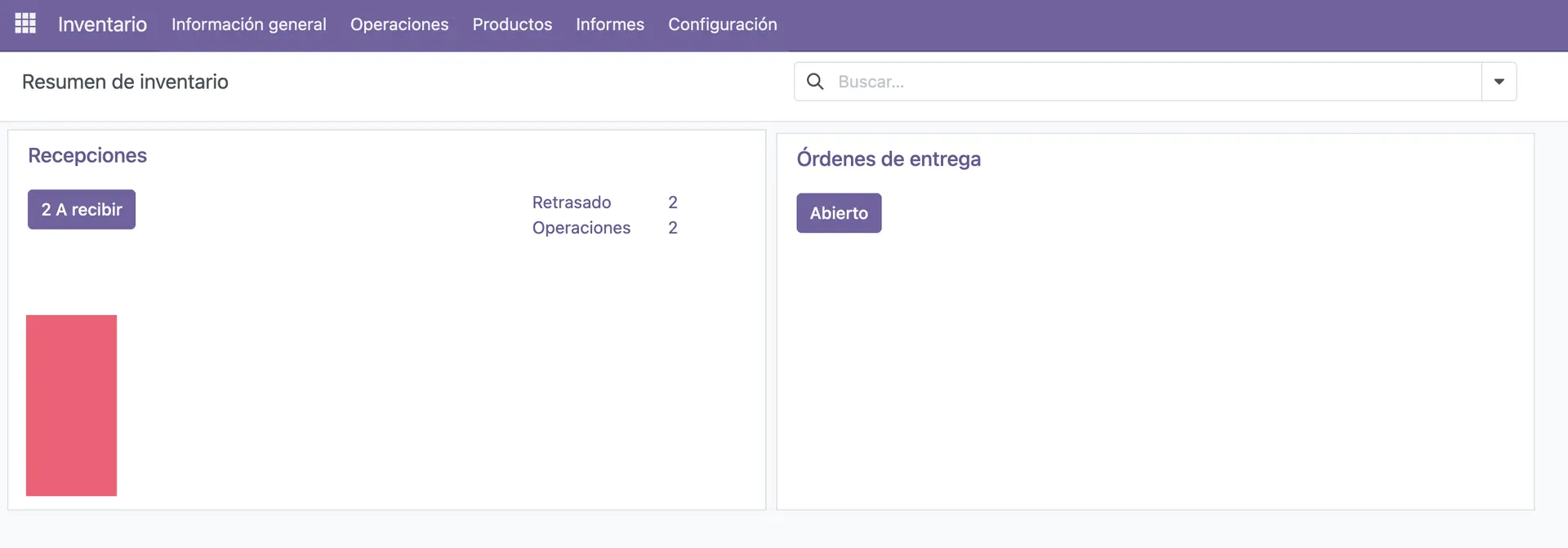
Define your warehouses, storage locations and reordering rules so stock levels stay accurate automatically.
Do it yourself
Go to Inventory > Configuration. Set up your warehouse(s), create storage locations, and configure reordering rules for key products.
Ask Emma to do it for you
Try: "Set up a single warehouse with three storage locations and enable automatic reordering for my top 10 products." Emma configures it and shows you what it changed.
Purchases
Add your vendors and set approval limits so purchasing stays fast without losing control.
Do it yourself
Go to Purchase > Configuration. Add your main vendors, set up purchase agreements if needed, and define approval limits by amount.
Ask Emma to do it for you
Try: "Add my main supplier and set a purchase approval limit of €5,000." Emma creates the vendor record and applies the limit once you confirm.