00 Intro
Every business has a drawer, a glovebox, or a phone gallery full of crumpled receipts. Fuel, parking, a working lunch, office supplies.
Each one is a deductible expense, and each one represents a small task that almost always gets postponed until it's too late to do it well.
The cost is real: expenses that never get recorded are money left on the table, and for anyone managing several accounts, they turn into a flood of blurry photos at the end of every quarter.
This is exactly the friction that artificial intelligence removes. Below we show how to track expenses with AI from a single photo, end to end, using Emma inside Binhex Cloud.
Summary: To record an expense, you take a photo of the receipt and send it to Emma in the chat. She reads the amount, date, and description automatically and files it as an expense in the Expenses app. You only have to confirm it. No manual data entry, no training required.
Table of contents
- The problem isn't recording the expense.
- How do you upload an expense with a photo?
- What it actually looks like
- What if I have a team?
- Why does this matter now?
- See it in action (video tutorial)
- FAQS
01 The problem isn't recording the expense. It's that nobody does it on time.
Registering an expense was never the hard part. Dozens of tools can store a receipt. The real problem is behavioural: capturing the expense feels tedious, so it gets put off. The receipt fades in a pocket, the amount is forgotten, and the deduction is lost.
The bottleneck is never the accounting itself. It's the data collection that comes before it: reading each ticket and typing its contents into a system. That's the step that gets skipped, and it's exactly the step AI can take over.
02 How do you upload an expense with a photo?
There are really only three things you do. Everything after that happens on its own.
1. Take a photo of the receipt. Any everyday receipt works: a fuel ticket, a restaurant bill, a parking stub. You capture it the moment you have it, before it gets lost.
2. Send it to Emma in the chat. You attach the image to the conversation, the same way you'd send a photo to a contact. No form to fill in, no fields to map.
3. Confirm. Emma reads the receipt, tells you she'll file it as an expense, and asks you to confirm. That's the only decision you make.
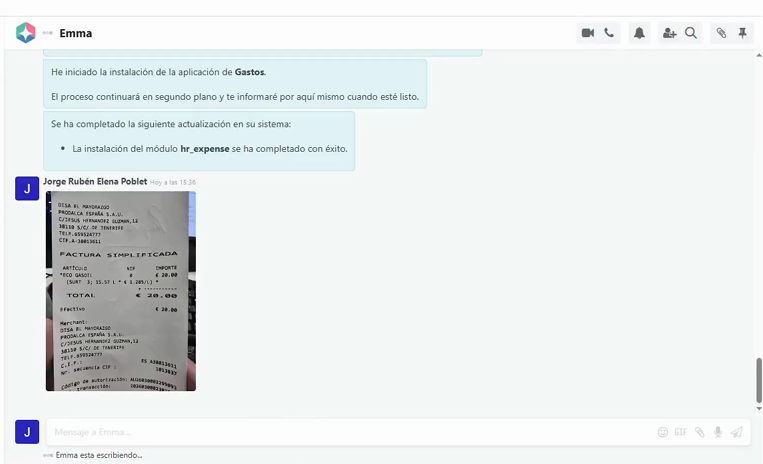
From there, the system does the rest: the expense is read, sent to the Expenses app, and placed in the pending-review list. The amount, the description, and the details are already pulled from the ticket. Nothing is typed by hand.
03 What it actually looks like in the Expenses app
This is where the difference becomes obvious.
Open the Expenses app and the entry is already there, complete.
Everything that was on the receipt:
The description, the amount, the rest, all loaded and waiting. There's nothing left to enter; you simply create the report.
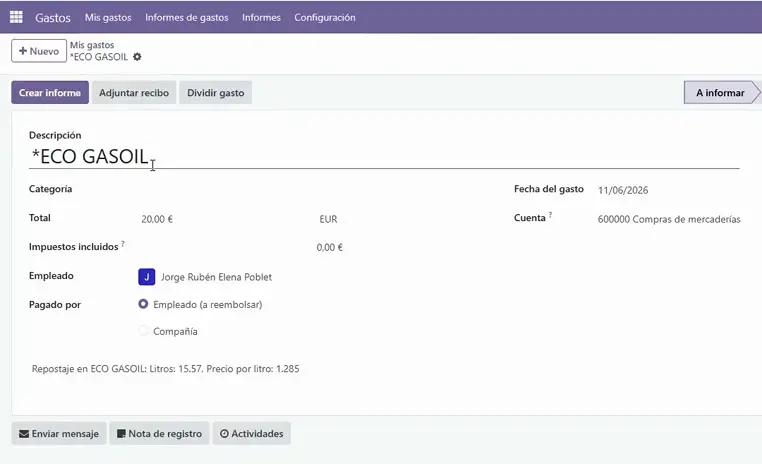 Each employee uploads their expenses; they're recorded per person
For a self-employed user, that's the whole job done: approve it and it posts to accounting.
If the expense was paid by an employee, it's already set up for reimbursement, with the description read straight from the ticket. The tedious part is simply gone.
04 What if I have a team?
The same flow scales to a team without any extra effort. Every employee uploads their own expenses just by chatting with Emma. There's no app to teach, no expense template to explain, no onboarding session. Someone who has never used an ERP can photograph a receipt and send it, and the data arrives structured on the other side.
With a team, the same flow gives you:
- Expenses per person: each employee records their own, tracked individually.
- Reimbursements in order: expenses paid by employees are ready for repayment.
- Clear approvals: every expense follows a defined review path.
05 Why does this matter now?
There's an honest boundary worth stating. Emma reads the receipt and records the expense, but she doesn't replace the final review.
The approval step exists on purpose, because a professional's judgment still matters. What the AI removes is the manual data entry, not the oversight, and that distinction is what makes it practical rather than risky.
It also fits a broader shift. Digitising invoicing and expense records is no longer optional in Spain, and the businesses that get their data flowing cleanly now will spend far less time firefighting later. Clean expense capture is a small, concrete place to start.
06 See it in action
Below, the whole flow runs start to finish. The photo, the chat with Emma, and the expense landing in the Expenses app, already complete.
The conclusion
The hardest part of expense management was never the accounting. It was getting the data in, on time and without errors.
A photo sent to a chat closes that gap: the expense is captured the moment it happens, read automatically, and recorded after a single confirmation.
Try it on your next receipt.

07 Questions you're probably asking
No. You photograph the receipt and confirm. Emma reads the data and files it; the system handles the rest.
It's designed for everyday business receipts such as fuel, meals, parking, or supplies. You send the photo and Emma extracts the relevant details.
No. They upload their expenses by chatting with Emma, with no app to learn beforehand.
Yes. You can start with a free plan for one user, with no credit card and no time limit.
The expense goes to a pending-review list with all its data already loaded. Once approved, it's recorded in accounting.
Empiece a escribir aquí...
How to record an expense with one photo (and let it post itself)