Connecting PostgreSQL to Power BI is increasingly essential for companies looking to turn their data into actionable insights.
PostgreSQL is a powerful open-source database, while Power BI is a leading data visualization and analytics tool. Together, they enable businesses to transform raw data into meaningful information.
However, the real value is not just in connecting them, it’s in how the data is structured, analyzed, and used to drive decisions.
What is PostgreSQL and what is it used for?
PostgreSQL is an open-source relational database management system known for its robustness, scalability, and ability to handle large volumes of data.
It is widely used in enterprise environments and in systems like Odoo, where it manages critical business data such as sales, inventory, accounting, and operations.
What is Power BI and what is it used for?
Power BI is a data visualization tool developed by Microsoft that allows users to create interactive dashboards and reports.
It enables organizations to:
- Visualize complex data
- Analyze trends
- Make data-driven decisions
Why connect PostgreSQL to Power BI?
Connecting PostgreSQL to Power BI allows businesses to:
- Centralize their data
- Build real-time dashboards
- Improve visibility across operations
- Make faster and more informed decisions
But simply connecting both tools is not enough.
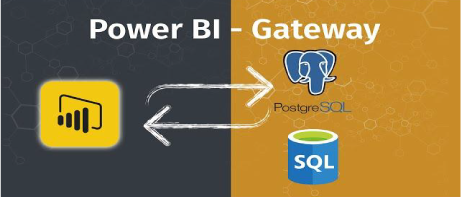
How to connect PostgreSQL to Power BI
Option 1: Using Npgsql
- Install the Npgsql driver from the official website
- Open Power BI Desktop
- Click on “Get Data”
- Select “PostgreSQL Database”
-
Enter:
- server address
- database name
- username and password
Option 2: Using an ODBC connection
- Install the PostgreSQL ODBC driver
- Configure a DSN (Data Source Name)
- Open Power BI Desktop
- Select “Get Data” → “ODBC”
- Connect using your configured data source
Additional configuration
- Enable remote connections in PostgreSQL (pg_hba.conf)
- Restart the server
- Optimize queries before importing data
- Use Power BI Query Editor for transformations
Common challenges when connecting PostgreSQL to Power BI
This is where many implementations fail:
- Slow queries
- Poorly structured data models
- Data inconsistencies
- Security limitations
- Manual data processes
- Performance bottlenecks
👉 The connection works, but the system does not scale.
The real challenge: turning data into useful insights
Connecting PostgreSQL to Power BI is just the first step.
The real challenge is:
- fragmented data
- lack of structure
- disconnected systems
- limited automation
Without solving this, dashboards do not reflect the true state of the business.
From dashboards to real business intelligence
To unlock real value, companies need:
- a solid data model
- integration with their ERP
- automated processes
- scalable architecture
This is where concepts like:
- data layer
- system evolution
- technical debt reduction
become critical.
When Power BI is not enough
Power BI is a powerful tool — but it depends on the system behind it.
If:
- your data is not structured
- your ERP is not integrated
- your systems are fragmented
then your dashboards will be unreliable.
Building a scalable data foundation
The goal is not just to visualize data.
It is to build a system that can:
- scale
- integrate
- automate
- evolve
This requires working on:
- your database (PostgreSQL)
- your business systems (ERP)
- your data architecture
Is your system ready to scale?
If your company relies on:
- disconnected tools
- manual processes
- complex reporting
- unreliable dashboards
then the problem is not Power BI.
It’s the system behind it.
Request a data architecture review
We help you:
- structure your data
- integrate your systems
- improve reporting
- prepare your business for growth
Final thoughts
Connecting PostgreSQL with Power BI opens powerful opportunities for data analysis and decision-making.
But the real impact comes from building a system that can evolve, not just from connecting tools.
How to Connect PostgreSQL to Power BI (and Why It Matters for Your Business)